If you’re anything like me, you probably have more browser tabs open than you’d like to admit. Between writing blog posts, designing printables, creating Pinterest Pins, editing photos for sponsored content, and keeping up with social media, my days are filled with creative projects. I love every minute of it, but one task that has always slowed me down is editing images.
Whether I’m creating graphics for Kelly’s Thoughts On Things, designing coloring books, working on printable products, or photographing home décor, I usually end up opening multiple programs just to remove a background or clean up an image. It doesn’t seem like much until you’ve done it over and over throughout the week.
That’s why I was excited to try Creative Fabrica Studio Desktop. I wanted to see if it could fit into the way I already create instead of adding another complicated tool to my workflow.

The Image Editing Struggle Most Creators Know
One thing I’ve learned after years of blogging is that creating content isn’t just about writing. Every blog post, Pinterest Pin, printable, or social media graphic usually starts with editing images.
If you’re an Etsy seller, blogger, Cricut crafter, or digital product creator, you’ve probably experienced some of the same frustrations I have.
You upload an image to one website to remove the background.
Then you download it.
Next, you upload it somewhere else to resize or edit it.
Sometimes you’re limited by credits, subscriptions, or file sizes.
By the end of the day, you’ve spent more time moving images around than actually creating.
I wanted something that would help simplify that process.
What Is Creative Fabrica Studio Desktop?
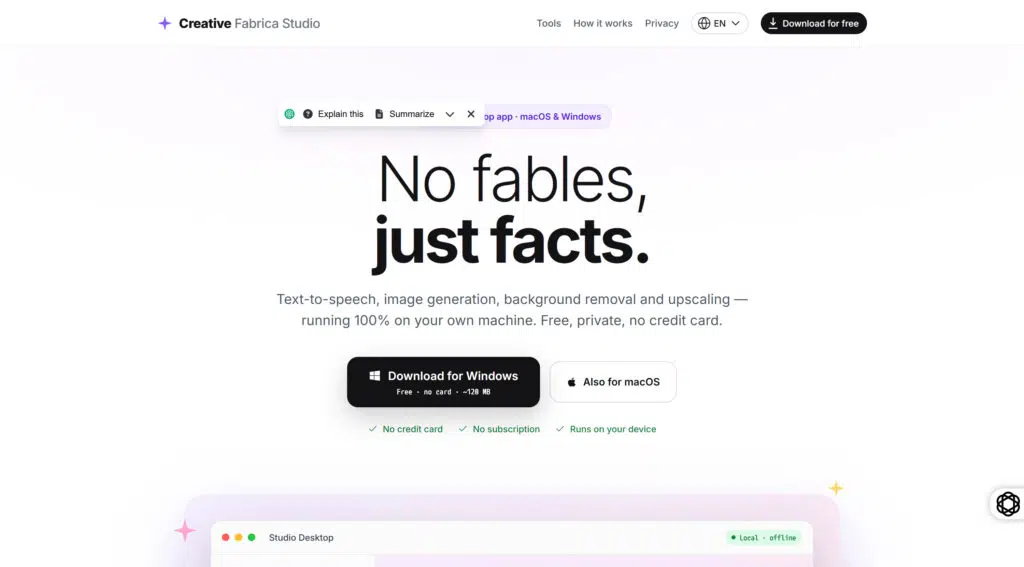
Creative Fabrica Studio Desktop is a Windows and Mac application that lets creators use Creative Fabrica Studio together with supported local AI tools installed on their own computer. After the required model is installed, supported tools, such as background removal, can run on your computer as part of your creative workflow instead of relying only on cloud processing. This makes it easier to keep working without constantly jumping between different editing websites.
Since I already use Creative Fabrica for fonts, graphics, and creative inspiration, I was curious to see how the desktop application would fit into the projects I create every week.
My First Test: A Home Décor Photo
Rather than starting with a stock image, I wanted to use something I had actually photographed myself.
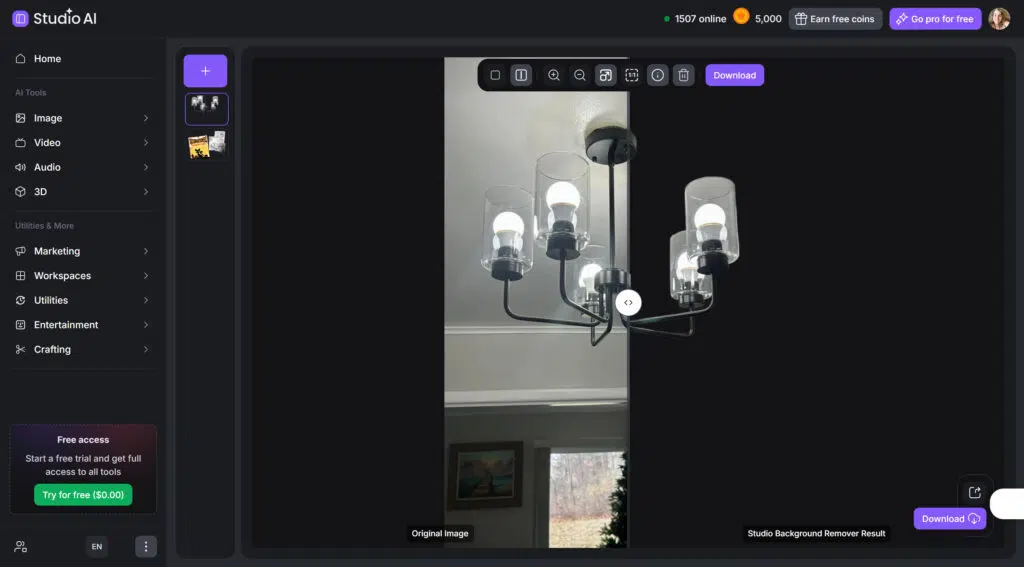
I recently installed a new chandelier in my home that I’ll be featuring in an upcoming blog post. My original photo looked great, but it also included the ceiling, doorway, windows, and everything else around it.
Normally, removing all of that would mean opening another editing program and carefully cleaning up the edges by hand.
Instead, I uploaded the image into Creative Fabrica Studio Desktop and used the background remover.
The result honestly surprised me.
The tool removed the room while keeping the details of the chandelier intact. The curved metal arms, glass shades, and light bulbs all remained clean without requiring me to spend extra time fixing the edges afterward.
Immediately, I could picture using the isolated image in a collage, a sponsored campaign, or a Pinterest graphic without distracting background elements.

My Second Test: One of My Halloween Printables
Since I spend a lot of time designing printable products, I wanted to see how the background remover handled something other than photography.
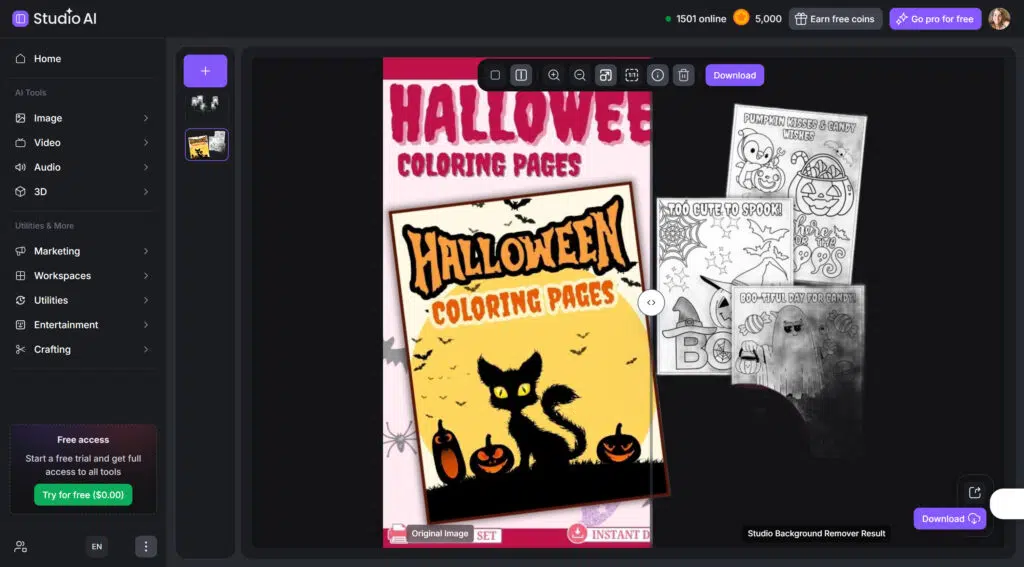
I chose the cover from one of my Halloween Coloring Pages printables.
Normally, when I create Pinterest graphics or promotional images, I need transparent versions of my covers so I can layer them over seasonal backgrounds or marketing graphics.
Using the background remover, I was able to isolate the book cover without the surrounding background.
That may sound like a small thing, but it gives me so much more flexibility.
Now I can easily place the cover on Pinterest Pins, Facebook graphics, blog images, or promotional materials without worrying about awkward white boxes surrounding the design.
As someone who creates seasonal printables throughout the year, I can already see this saving me time during Halloween, Christmas, Easter, and every other holiday season.

Why Local AI Makes Sense for Creators
One feature I really appreciate is that, after the required model is installed, supported local AI tools can run on your computer. That means I don’t have to upload every single image to another cloud-based editor just to make a simple change.
For creators who work with dozens of images every week, that convenience adds up.
Some other benefits I noticed include:
- Less time switching between editing websites
- No credit system for supported local AI tools
- A smoother creative workflow
- Helpful when processing multiple images
- More control over the files you’re editing
- Convenient for bloggers, Etsy sellers, and digital creators
When you’re balancing blog posts, sponsored campaigns, Pinterest content, and printable products, every saved step helps.
Who I Think Will Benefit Most
After testing the app, I think it would be especially useful for:
- Bloggers
- Etsy sellers
- Print-on-demand creators
- Cricut users
- Sublimation designers
- Teachers creating printables
- Digital product sellers
- KDP publishers
- Pinterest creators
- Small business owners
- Content creators
If editing images is part of your weekly routine, I think you’ll appreciate having these tools built into your workflow.
What I Liked
I always try to be honest when I review a product or service, so here are the things that stood out to me.
Pros
- Easy to install and start using
- Windows and Mac support
- Background remover worked well on both of my test images
- Helpful for blog graphics and printable products
- Keeps image editing inside one creative workflow
- Great for creators who regularly edit photos and graphics
A Few Things to Keep in Mind
No software is perfect, and I think balanced reviews are always more helpful.
Limitations
- Performance will depend on your computer’s hardware.
- The AI models need to be downloaded before using the supported local tools.
- Older computers may process images more slowly.
- Some Studio features may still require an internet connection or a Creative Fabrica account, depending on your workflow.
None of those were deal breakers for me, but they’re worth mentioning so you know what to expect.
Will I Keep Using It?
After trying it with both a home décor photo and one of my printable designs, I can already think of several ways it fits into the work I do every week.
I’ll be using it for blog graphics, sponsored campaigns, printable products, Pinterest Pins, and promotional images. The less time I spend moving images between different editing websites, the more time I have to focus on creating new content for my readers.
If you’re a blogger, Etsy seller, printable designer, or content creator looking for a free local AI background remover, I think it’s worth taking a look and seeing how it fits into your own creative workflow.
Frequently Asked Questions
Is Creative Fabrica Studio Desktop free?
Yes. Creative Fabrica Studio Desktop is free to install, and supported local AI tools are available to help creators get started.
Does the background remover run locally?
After the required AI model is installed, supported local tools can run on your computer.
Does it work on Windows?
Yes. Creative Fabrica Studio Desktop is available for Windows.
Does it work on Mac?
Yes. The application is also available for Mac users.
Can I use it for Etsy product photos?
Yes. Based on my own testing, it can be helpful for isolating products or objects from their backgrounds, making images cleaner for listings and marketing materials.
Can I use it for print-on-demand designs?
Yes. The supported tools can help prepare graphics before using them in your print-on-demand workflow.
Can I make transparent PNG files for Cricut?
Yes. Removing the background from an image makes it much easier to create transparent PNGs that can be used in Cricut projects.
Is it an alternative to cloud background removers?
For supported tools, yes. After the required model is installed, you can use the supported local AI background remover on your computer instead of relying only on cloud-based editing.
Do I need an internet connection?
Some features may still require an internet connection or a Creative Fabrica account, depending on the workflow you’re using.
Are my images uploaded?
The supported local AI tools can run on your computer after the required model is installed. Keep in mind that not every Studio feature is necessarily local, so it’s best to use the app according to the feature you’re using.